Bookmarks are your shortcuts to frequently used views and reports in Capitally. Think of them as your personal navigation system that remembers exactly how you like to see your data.
What makes bookmarks special?
The beauty of bookmarks lies in their flexibility. You can save either complete view settings or just specific parts you care about. For instance, you might want to save just your preferred metric, period, and chart type, while keeping your current filters and groups. When you click such a bookmark, it will only update those specific settings while leaving everything else unchanged.
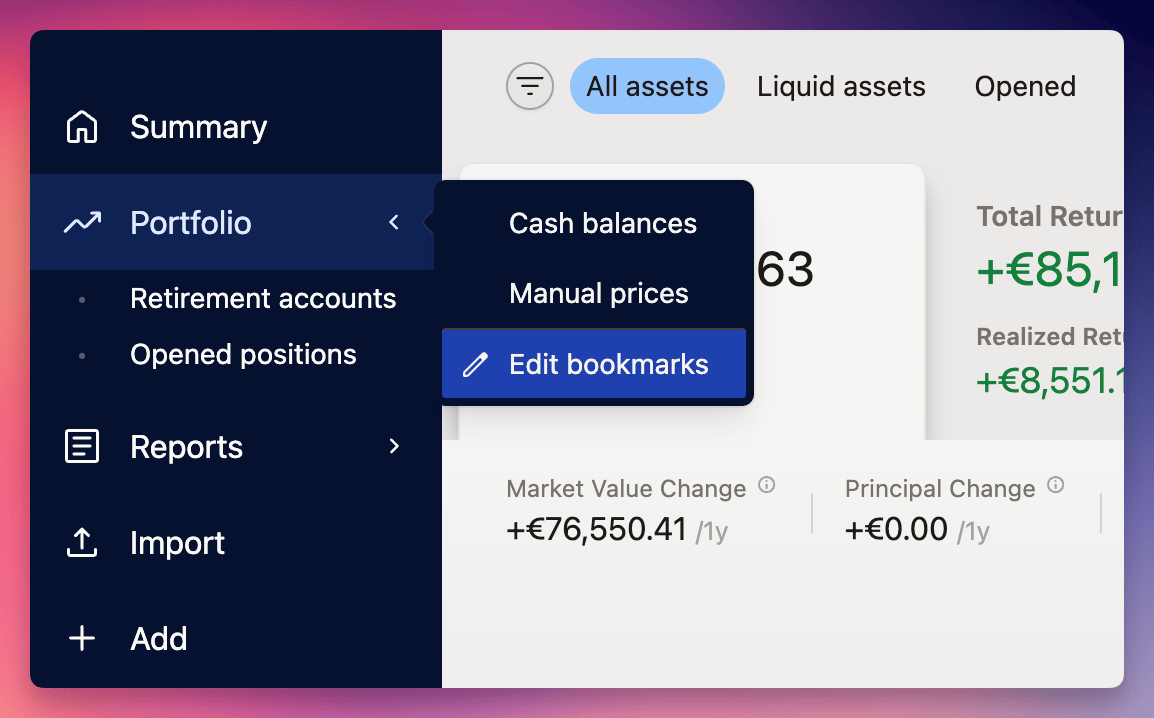 Bookmarks menu
Mix and match partial bookmarks to create powerful combinations.
For example, use one bookmark for a portfolio section and another for specific metrics - they'll work together seamlessly!
Creating a bookmark
First, arrange your view exactly as you want it - this could be your favorite portfolio overview or a specific report layout.
Then, open bookmarks menu and select Edit Bookmarks.
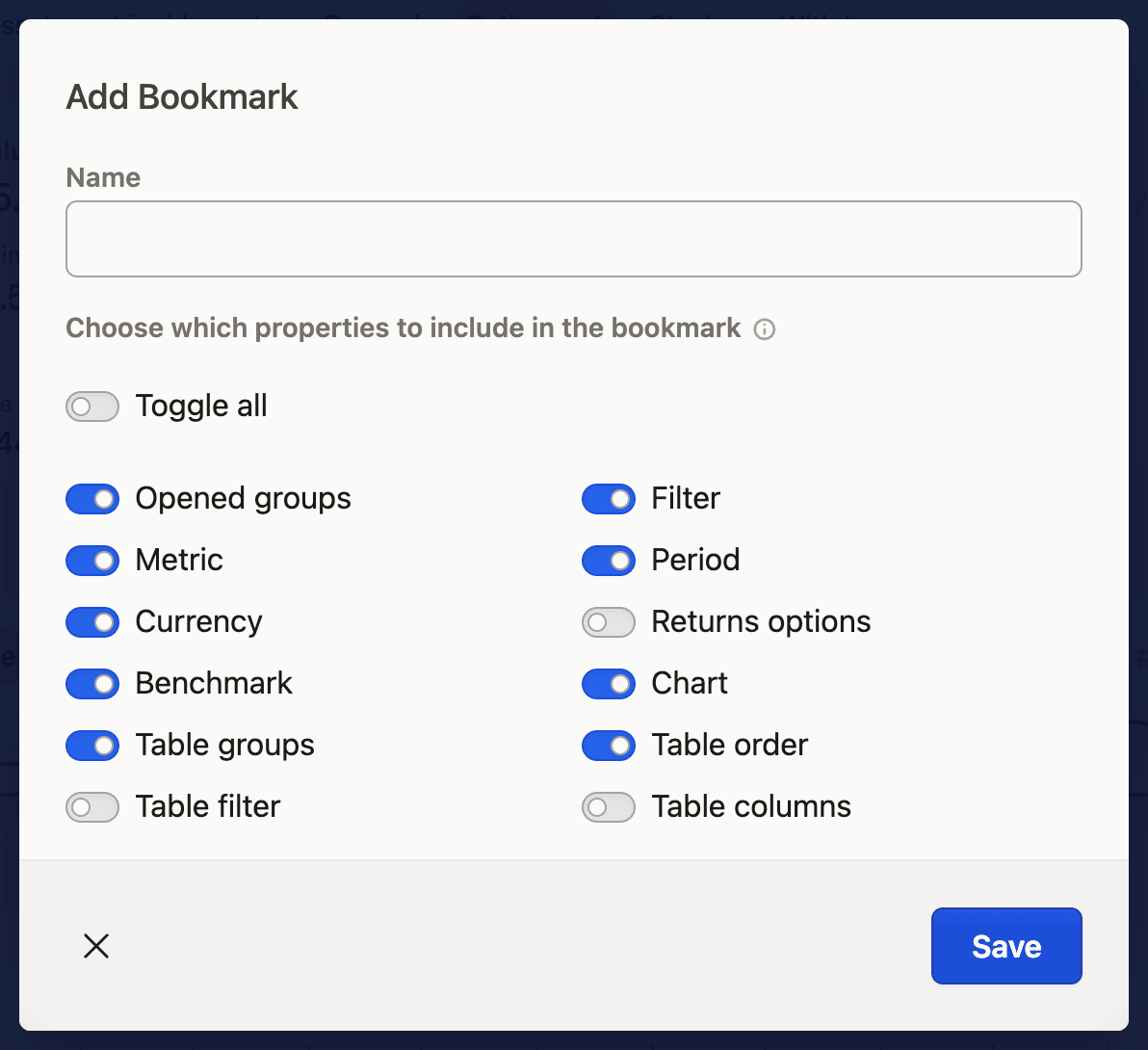
Click Add Bookmark in the window that appears, or press S, and you'll get to choose which settings to save. You can capture everything for an exact replica of your current view, or just select specific elements you want to preserve.
The active filter counts as part of the view, so a bookmark that captures everything reopens the same set of positions, not only the same columns and period. Folders, tags and the other groupings are stored by name, so renaming one of those breaks the saved view — accounts and assets are stored by id and survive a rename. See When a bookmark stops working.
Updating bookmarks
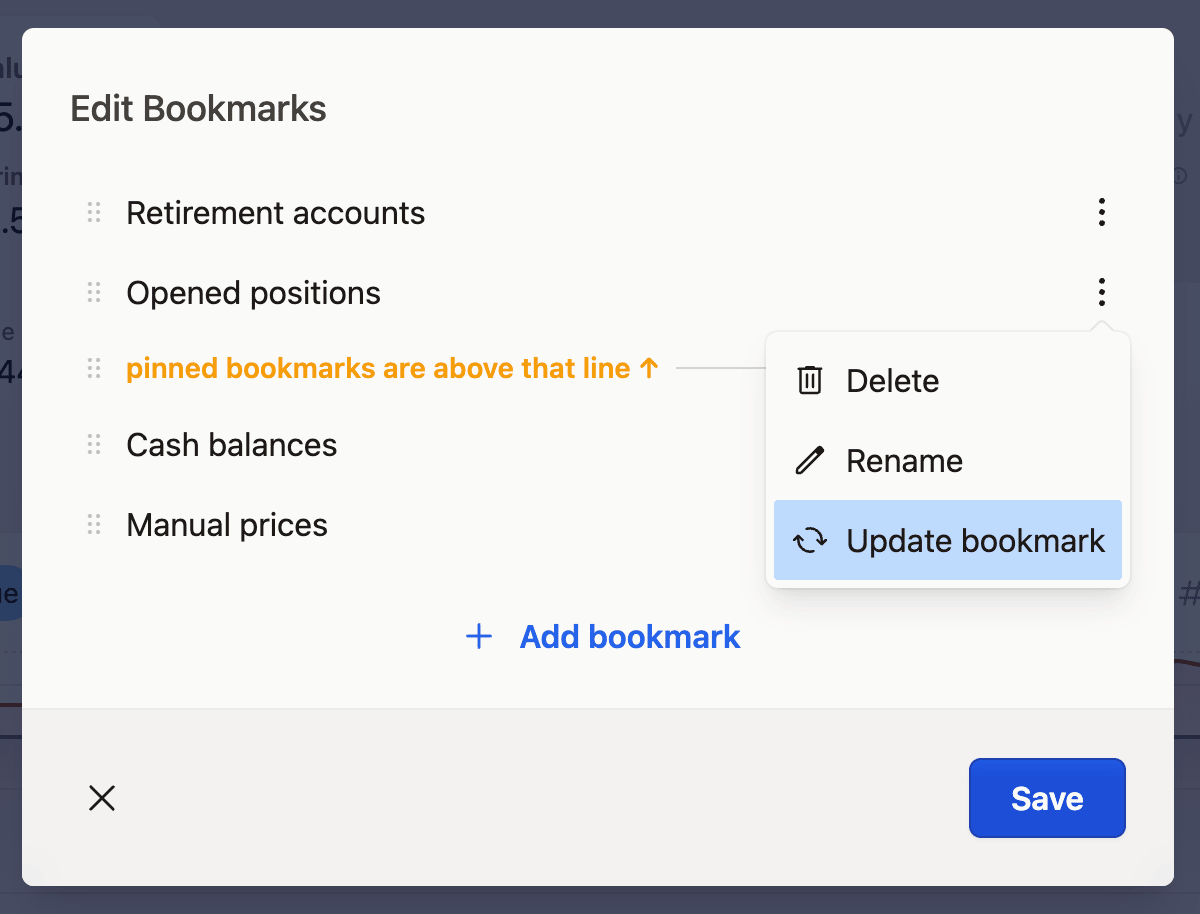
Need to update an existing bookmark? Navigate to the view you want to save, then head to Edit Bookmarks from the bookmarks menu.
Find your bookmark in the list, click its context menu, and select Update Bookmark. Shift+S does the same for the bookmark you opened last. You'll see all the previously saved settings pre-selected, but feel free to modify these choices to match your current needs.
When a bookmark stops working
A bookmark that opens an empty view has almost always lost track of a rename. Bookmarks refer to folders, tags, categories, regions and sectors by name — in the saved filter and in whatever you had drilled into — so renaming one of them leaves the bookmark matching nothing. Your data is intact; the bookmark is looking for a name that no longer exists. Accounts and assets are referenced by id, so renaming those is safe.
To repair one bookmark, navigate to the view you actually want, then open the bookmarks menu → Edit Bookmarks → the bookmark's context menu → Update Bookmark. That re-saves the current, correct filter over the stale one.
If one rename broke several bookmarks at once, fix them in bulk:
- Go to Settings → Export Data and export the project to JSON.
- Open the file in a text editor that keeps the JSON structure intact, and replace every occurrence of the old name with the new one.
- Import the file back into the same project through Import →
Capitallypreset.
Objects with existing ids are merged rather than added, so the bookmarks are updated in place instead of duplicated. If the result isn't what you wanted, undo the import from Changes History.
Quick access with pinned bookmarks
If you're working on a larger screen, you can make your favorite bookmarks even more accessible by pinning them to the menu bar.
Simply go to Edit Bookmarks and look for the line that says pinned bookmarks are above that line. Drag any bookmark above this line, and it will appear directly in your menu bar - no need to click through the chevron icon anymore. G 1 to G 0 open the first ten pinned bookmarks from the keyboard; see Search and keyboard shortcuts.