Advanced mode allows you to create a complex importing logic. Many brokers and data sources provide data that doesn't directly match transactions. This may involve adjusting logic based on the action type, referencing other rows or sheets, or tracking traits in a shared variable. This flexibility is achievable through programmable presets.
When creating a fresh preset, we'll help you setup the basics. At any time you can switch to Advanced mode to access the functionality described here.
Learn by example
You can check how every built-in preset is build and modify it. Just edit the chosen preset and switch to Advanced Mode.
You can also copy & paste blocks between presets.
Please, read the article on the basics first.
And now let's go through the various statements available in imports.
Adding transactions
Every added transaction requires at least the Date, Transaction type and Asset. Buy & Sell transaction will also require Price and Quantity, while Income & Other transactions will expect Value.
Once the first transaction is created, it will be displayed in the dedicated transactions tab.
Adding accounts
Every added account requires at least a Name.
Account can be made optional, which means that they won't be added unless they are referenced by any of the transactions.
Once the first account is created, it will be displayed in the dedicated accounts tab. Please remember that optional accounts won't be displayed there unless a transaction uses them.
To use such an account you use the special Added Account property, which you can assign both the variables and properties.
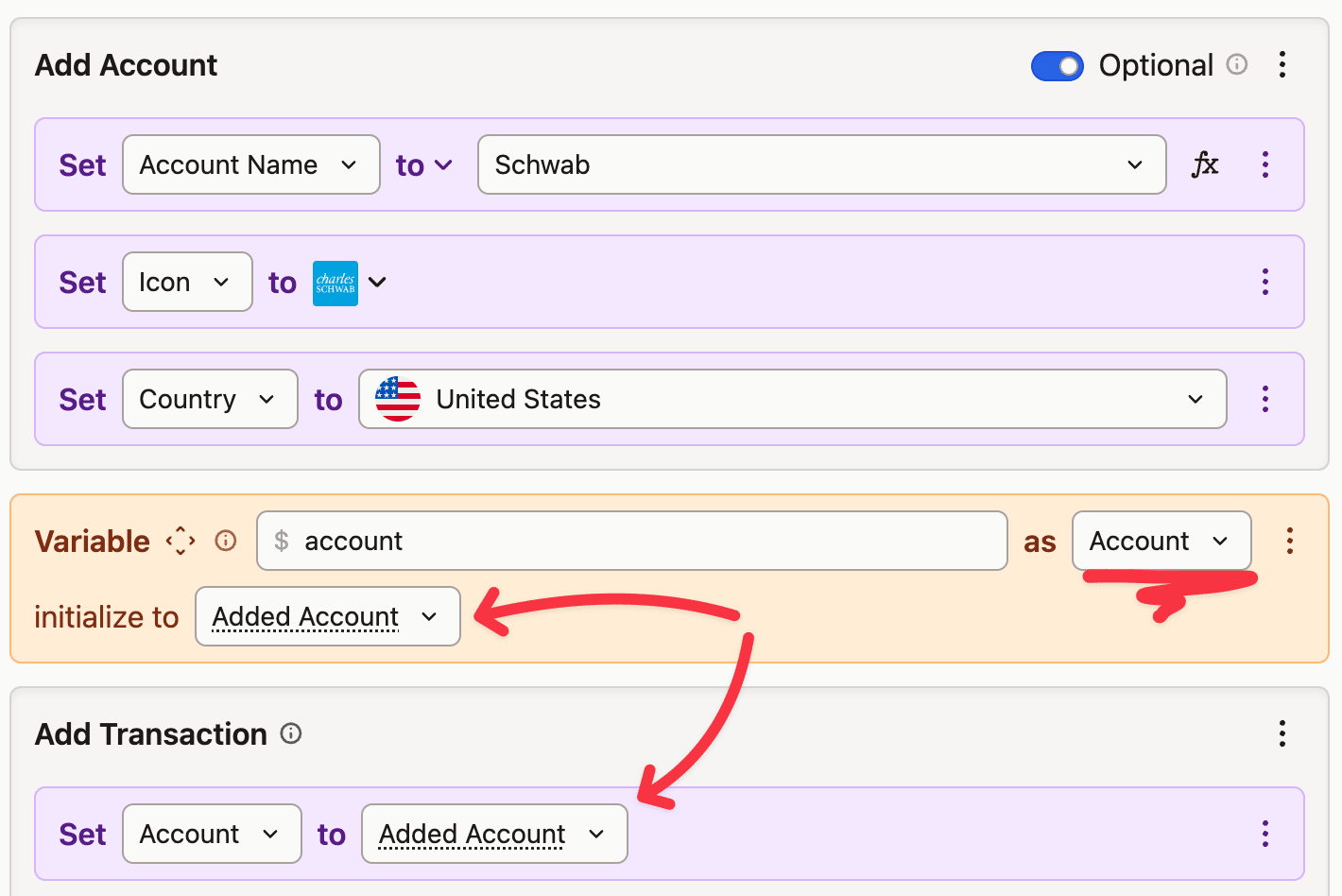 Account can be assigned both to a variable or any property
Adding assets
Every asset added by a preset needs at least a Name, Type and Currency. Set Symbol when the file provides one. Market Data Source uses an existing market symbol for prices; if that symbol may be absent from the catalogue, enable its optional toggle so the row imports without a quote source.
The toggle's hint is use manual prices instead of failing. A deferred or failed catalogue lookup still fails the row; only a confirmed miss falls back to manual prices.
Asset can be made optional, which means that they won't be added unless they are referenced by any of the transactions.
Once the first asset is created, it will be displayed in the dedicated assets tab. Please remember that optional assets won't be displayed there unless a transaction uses them.
To use such an asset you use the special Added Asset property, which you can assign both the variables and properties.
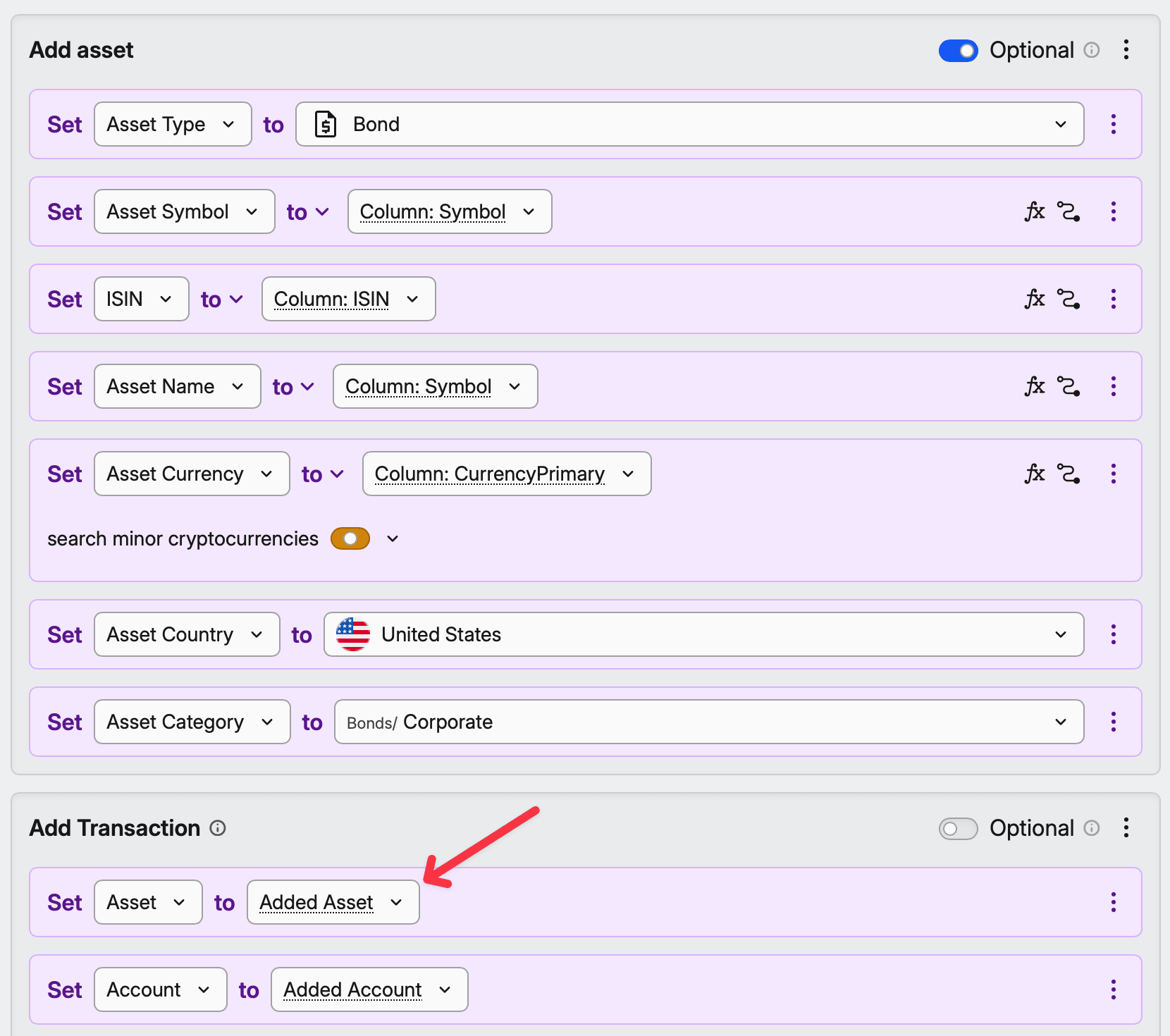
Fetching market asset's taxonomies
If you create a duplicate of a market symbol - like a derivative or option - you might want to fetch the underlying symbol's taxonomies (Sector, Region & Category).
You do that by adding the Update Asset Taxonomies statement after you've set the Asset's ISIN or Market Data Source.
Creating custom assets from your file
When an ISIN isn't in the market database — routine for bonds — let the preset create the asset from the row's own columns: map the ISIN column to Symbol, the name column to Name, and set Type to Bond or Deposit. One preset then maps the transactions and mints the assets as it goes, which is the practical way to bring a bond ladder in from your own spreadsheet.
The preset can set up interest-based pricing as it creates the asset. Inside Add Asset, put Use interest-based pricing before Set interest parameters; add Add interest parameters for dated rate changes. If the file does not contain the terms, leave the asset on manual pricing and log the coupons and redemption instead; both feed into returns.
You can also pin the exchange instead of letting the matcher take whichever listing has the longest price history: inside Add asset, add a Set statement on the Market property. That is how the built-in Bossa preset keeps its rows on Warsaw, and any built-in preset can be edited the same way.
Preparing unmatched assets and accounts for creation
An Asset cast's Details and custom asset setup block prepares the object offered when the review finds no match. Its asset name, symbol and ISIN fields serve as search terms and pre-fill the Add asset form. The draft is added to the project only when you choose the row's Create button or run Create N missing objects.
The block offers If, Set, Variable, Block, Exit, Comment, Update Asset Taxonomies, Use value-based pricing, Use interest-based pricing, Set interest parameters and Add interest parameters. It can read the row but can write only to the draft.
Leave Asset empty in Add interest parameters inside this block. Naming an asset fails with Only the asset being created can be changed here - remove the asset argument.
An Account cast uses Custom account setup for the same purpose. Its block offers If, Set, Variable, Block, Exit and Comment to shape the account draft.
Setting market prices
The Set Market Price statement lets you set the price for a specified asset at a specified date.
The asset must be created before this statement is called. So you cannot add it to Add asset, but you can use it as a statement right after it.

Setting up interest-based pricing
An advanced-mode preset can create or update an interest schedule from file columns. Put Use interest-based pricing before Market Data Source, follow it with Set interest parameters for the starting terms, and use Add interest parameters for dated changes. The review table's Pricing column shows the pricing method before you import.
Use interest-based pricing replaces the asset's whole pricing setup. The asset type supplies the starting point: Bond uses face value 100, Actual/Actual, annual compounding and annual payments on the positive side, mirrored balances, and Market prices read as % of face value; Loan and Mortgage use face value 1 and monthly compounding on the negative side with mirrored balances; Deposit uses face value 1 and monthly compounding on the positive side without mirrored balances. Other asset types start with blank terms.
Set interest parameters lays its values over those defaults, so an empty field keeps the type's value. A stated rate or compounding column whose cell is blank does not keep the default: the row fails with The interest rate is missing or The compounding interval is missing. Using the statement before enabling interest pricing fails with Interest options require interest-based pricing to be enabled on the asset first.
Add interest parameters requires From date; without it, the row fails with The date of the interest change is missing. Leave Asset empty to change the asset being added, or select an asset already in the project to create an Update row. One change is stored per balance side and date, so importing the same file again rewrites that change instead of adding another one. A change for an unconfigured side fails with Interest is not enabled for <side> on this asset.
Looking up data in other rows or sheets
Some more complex presets might require looking up other rows - for example, to collect fees or to check the existence of another transaction.
You can specify where to start the lookup, which way to go, how many rows to skip and when to stop.
For each row within the lookup it's contents are executed. The parent row's columns are still available under Column: * as usual, while lookup row's columns are available under 🔍 Lookup: * name.
You can stop the lookup with the Exit statement. You can choose there to exit the whole program and proceed to the next data row, or to exit just 1 level up which will stop the lookup.
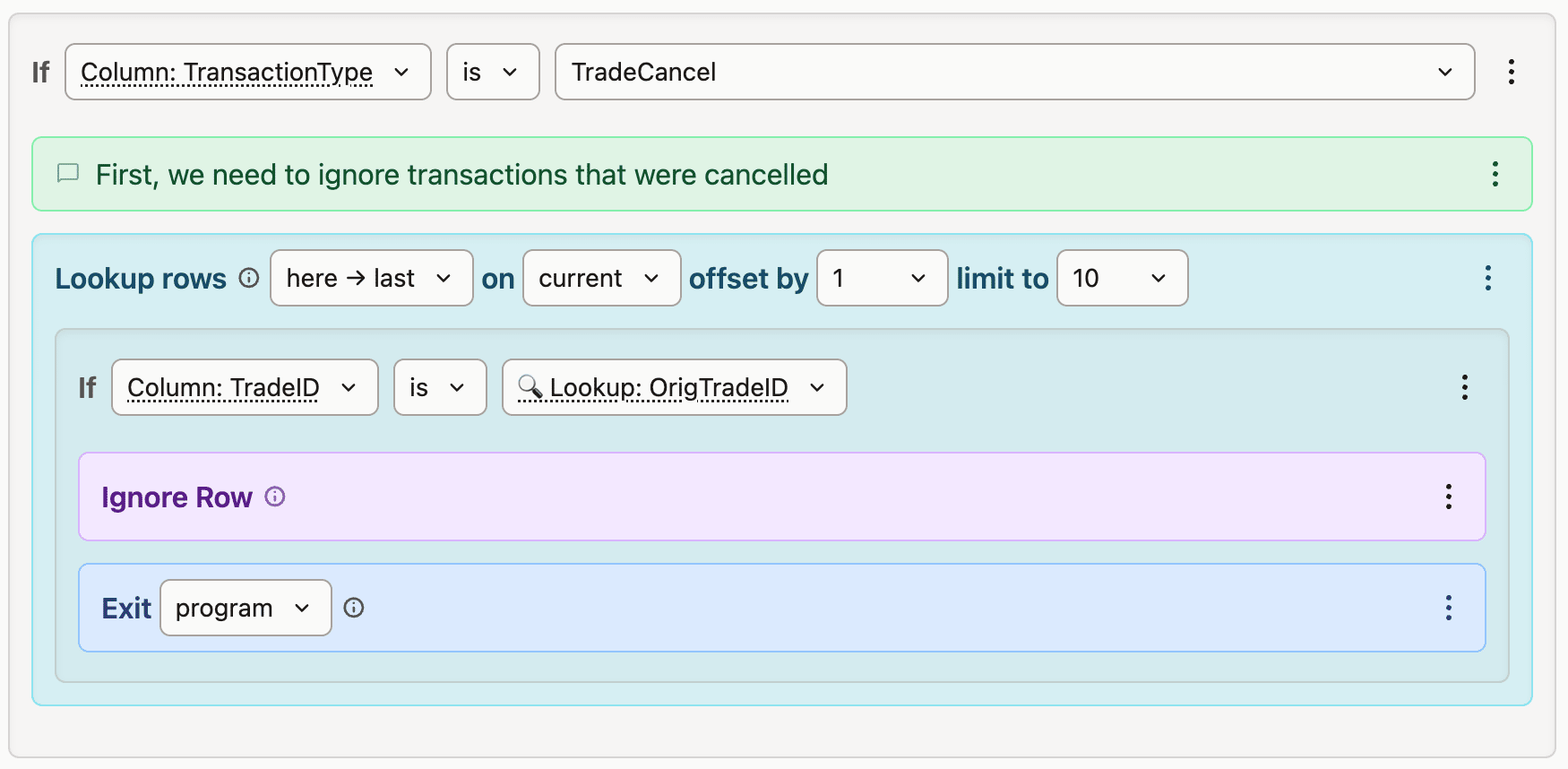 If the transaction type is "TradeCancel", we lookup the following rows and ignore the ones have the same trade id
Ignoring rows
You can ignore rows with the Ignore Row statement. Once you do that, the row will not participate in any lookups and won't be executed within the main loop.
Ignoring rows within the lookup ignores the look up row, not the parent one.
This is a very handy feature to mark the rows as being already handled.
Adding notes to rows
At any point, you can add a note to a row. They will be displayed in the output table next to a row that was evaluated.
A note added inside a lookup attaches to the looked-up row, not to the row that ran the lookup. That's deliberate — it is how you mark which rows a lookup has consumed. To annotate the originating row instead, collect the text into a variable during the lookup, then add the note with that variable's contents once the lookup has finished.
Asking for settings the file doesn't contain
Some facts a preset needs aren't in the file: the account currency, the kind of account an export came from, a timezone. Rather than guess them silently, declare an Option. The person importing sees it under Import settings on the review screen, pre-filled with your default, and can change it before confirming.
Options live in the before program, which runs once, before any row. Choose Add before program from the ⋮ menu next to the section tabs and it opens as the Before tab; Remove before program in the same menu takes it out again. With no row loaded yet, it can read the file name and variables declared earlier, but not columns. It offers If, Set, Variable, Option, Block, Exit and Comment.
An Option is declared like a Variable, with a few additions:
- Type —
asoffers only types the review screen can edit: text, numbers, dates, yes/no, and selectable types such as currency, asset, account or asset type. Selectable types also come in a multiple-values version. - Default —
initialize totakes a value, a property such as the file name, or a formula, with the same transforms, mapping and casting as aVariable. Left empty, the option starts empty. - Required — the asterisk next to the type. A required option left empty adds a "has to be set" note on the review screen; it doesn't block the import.
- Label and description — what the review screen shows, the description as an info tooltip. Both can also be a property or a formula with transforms.
Every section's program reads the option as $identifier, like any variable. A value picked on the review screen wins over the default and is kept when the preset is saved; Restore default next to the option goes back to your default.
Keep decisions that depend on a row in the section program. The built-in XTB preset is a working example — edit it and open the Before tab: it guesses the account currency from the file name, and its section program still keeps IKE and IKZE rows in PLN whatever the option says. Don't use an option for something the file already contains, or to correct individual values; that is what mapping is for.
Multiple data sections
Some files contain more than one type of items. For example, as single file can contain both accounts, assets and transactions.
You can add as many sections as you need on the Data Source page. They may refer to the same or different part of the file, have its own set of columns and their own programs.
Some sections may be optional, which means that if they cannot be found, the preset will still work.
You can treat different sections like sheets in the Excel file. They can produce objects or only be used to lookup rows, as you do it across different sections.
Generating transactions from a single input
A preset needs input data to run, but that input can be a single number. For recurring purchases spread across several funds or ETFs, build a preset that takes the month's total purchase amount and emits one BUY per asset with only Value set. Leave Price and Quantity empty: the import fetches the market price for that date and derives the quantity from it. Each month you paste the amount and run it.
This is the ongoing counterpart to the Transactions history starting point in Import from a file, which is the simpler tool when you want to bring in a whole historical series in one go.