Capitally keeps track of all the changes you make in your portfolio. This feature allows you to modify your portfolio without fear of breaking things, as you always can undo any change. It also lets you review any past actions.
You can access the History, Undo and Redo from the menu in the top right corner. From the keyboard, Z undoes, Shift+Z redoes and G then H opens History.
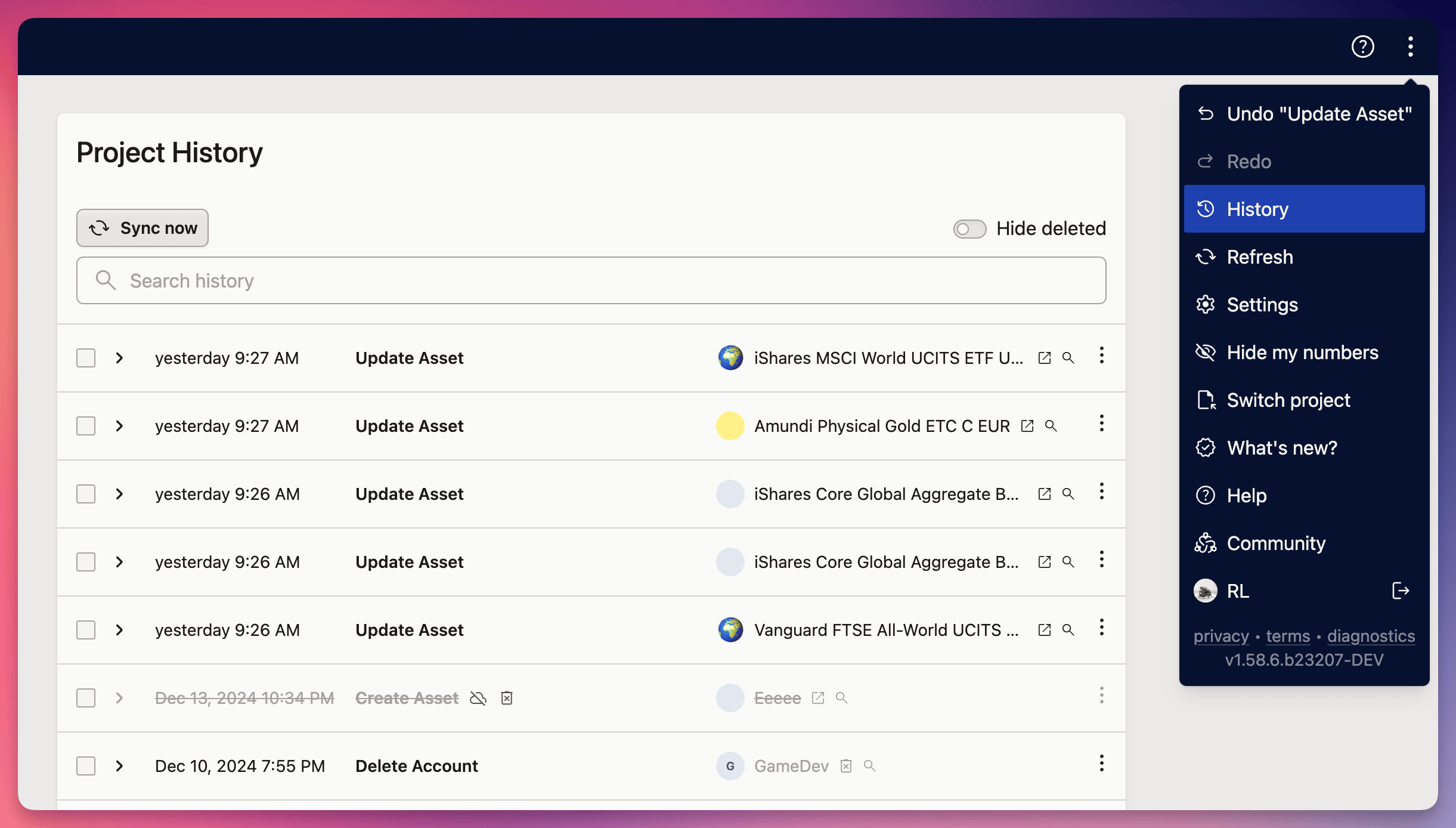
In the history view, you can check out all the changes made to see what properties were tweaked and the values that were updated. Plus, you can search for specific values you inputted to easily track when they were added.
Check history of a single item
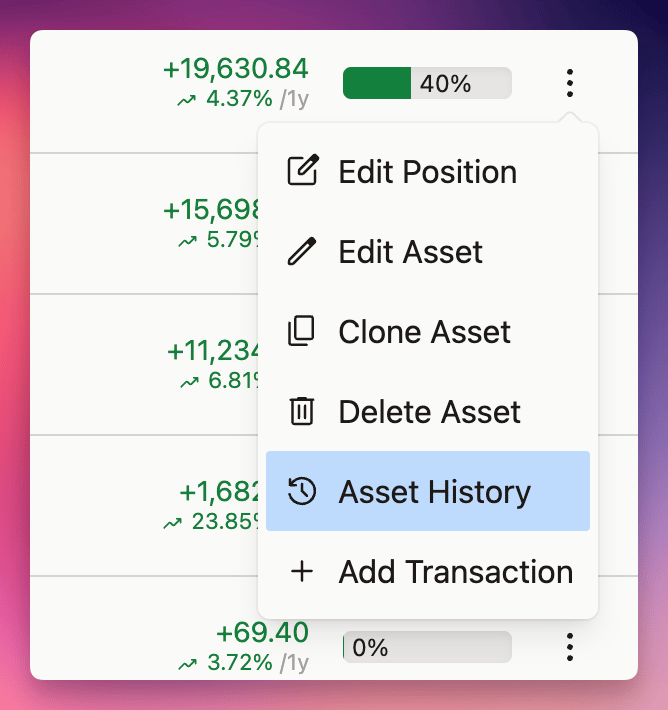
You can check out the history of any asset, account, transaction, or market by opening its context menu and selecting the history page to see all the changes made to that specific item.
Undoing an import
Every change made by a single import is grouped together in History, so an import can be found and rolled back long after the confirmation toast has gone. Open History from the top-right menu, locate the import, and undo it whole or undo only selected changes inside it. Each import also carries a summary of the resulting balances, grouped by the account you imported into — the quickest way to confirm what a past import actually did.
Re-importing a corrected file is usually easier than undoing one. Capitally recognises transactions it has already imported, so a second run adds only the missing rows and creates no duplicates. That is the move after fixing a preset, enabling cash tracking, or adding a missing asset. Rows you skipped or ignored during an import session are not stored anywhere — they exist only inside that session, so the original file remains the only record of them.
When the app is too slow to open the menu
If a change makes the project unresponsive and the app locks up before you can reach the top-right menu, go straight to https://app.mycapitally.com/start/history/. That opens the project history directly, where you can undo or delete the offending change.
One setting is enough to cause this: putting a mortgage's interest payment frequency on daily generates thousands of interest transactions. The same route works for any change that leaves a project unusable — see Troubleshooting the app for the rest of the ladder.
Fix a broken history by deleting changes
Sometimes your project history may become broken - especially if you frequently use Capitally on multiple devices. In such cases you will be greeted with a Project history has conflicts message.
To fix it:
- click on the toast or just open History from the top-right menu.
- review the changes that failed to apply - you can expand them to see what they are about
- delete conflicting changes
You can choose to either delete the transaction, or delete the change that removed the asset - in which case the transaction can be created and the conflict will be solved.
If the conflict survives every attempt to delete changes, rebuild the project instead — see Remove all History below. The conflict does not carry over into the new project.
Export and import history
You can select one or more changes by clicking the checkboxes to their left and clicking Export on the panel that appears at the bottom.
You can then import them back into another project just like any other data - by going to Import and selecting Capitally from the list of presets.
Remove all History
If for any reason you wish to erase your full history and only keep the current state, you can:
- Export the project to JSON
- Create a new project from the Switch Project modal — Projects covers that dialog and the encryption choice it asks for
- Import your data back
- Check the new project is complete, then delete the old one from Settings → General → Danger zone
This is also the escalation path when a Project history has conflicts message survives every attempt to delete the conflicting changes: the conflict does not carry over to the newly created project.
Modify the state manually
If you want to modify multiple items, and you prefer to do it in a text editor for any reason, you can:
- Export the project to JSON
- Edit the file in a text editor that supports JSON, while keeping it's structure
- Import your data back
If you're not satisfied with the result after importing, you can always undo the import and try again.
When import from a JSON, objects with new ids will be added to the project, while objects with existing ids will be merged with the existing ones. It's currently not possible to delete objects through imports.