Tracking your mortgage in Capitally lets you monitor your debt, interest payments, and see your true net equity when combined with property value.
Capitally can automatically calculate interest accrual and generate payment schedules.
Setting up a mortgage
- Click + Add and select Create custom asset
- Set Type to
Mortgage - Name it (e.g., "Apartment Mortgage" or "123 Main St Mortgage")
- Set the Currency to match your loan currency
- Open Prices tab
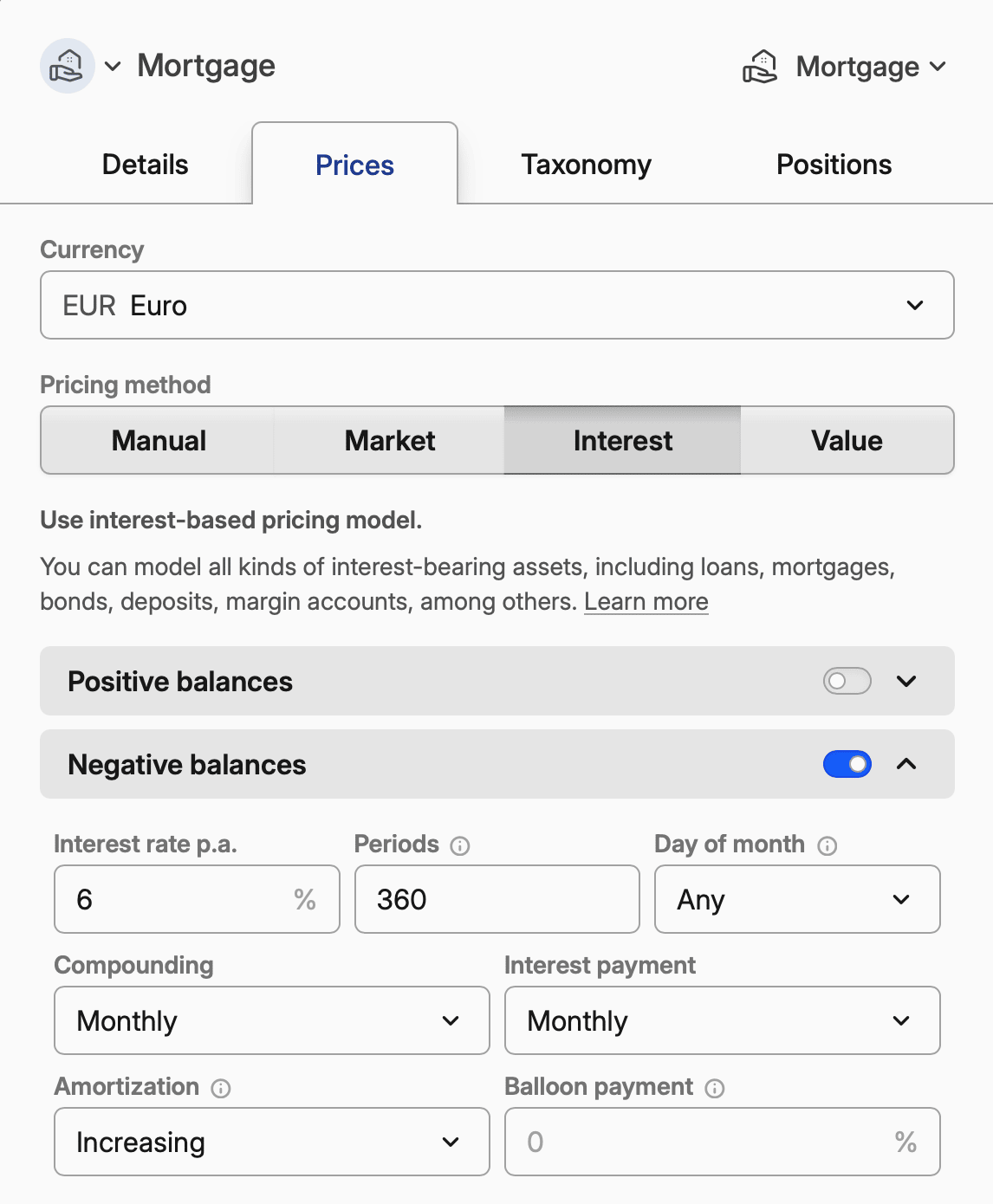
- Enable Interest pricing
- Configure the interest settings in
Loan parameters, as below
Example: 30-year fixed-rate mortgage at 6%
Setting | Value |
|---|---|
Interest rate p.a. | 6 |
Compounding | Monthly |
Interest payment | Monthly |
Periods | 360 |
Amortization | Increasing |
Day of month | 1 (or your payment date) |
Maturity date is the alternative to a period count: set the date the last payment falls on instead of Periods. A start date with 360 periods lets Capitally work the maturity out itself; a maturity date with 360 periods and no start date makes it work the start back from there.
Example: 5/1 ARM (5-year fixed, then adjustable)
Start with the initial rate, then add overrides for rate adjustments:
Setting | Value |
|---|---|
Interest rate p.a. | 4.5 |
Compounding | Monthly |
Interest payment | Monthly |
Periods | 360 |
Amortization | Increasing |
Then click Add rate to add an override:
- Date: 5 years after loan start
- Interest rate p.a.: 6.25 (or expected rate)
Add additional overrides as rates adjust annually.
Recording the initial loan
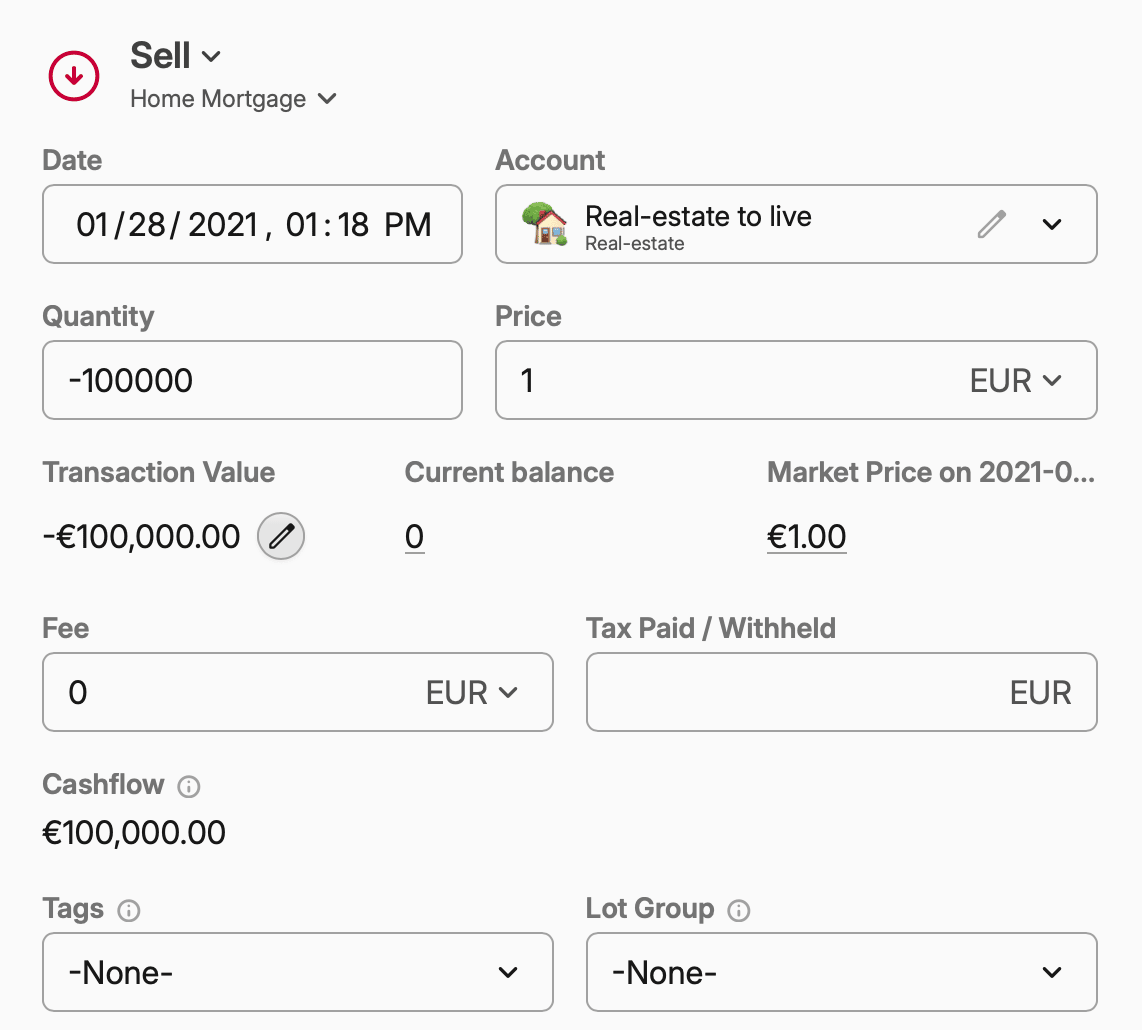
When you receive the mortgage:
- Add an Open transaction
- Set Quantity to the loan amount as a negative number (e.g., -300,000)
- Leave Price at
1, which Capitally pre-fills from the asset's face value - Set the Account where you want to track this mortgage
Recording out-of-schedule payments
If you configured interest-based pricing right, Capitally will automatically generate estimated interest transactions. You can adjust these to match your actual statements.
You can also add Interest transactions manually, whenever you make out-of-schedule payments or closing the mortgage early.
- Add an Interest transaction
- Set Interest received to the interest paid as a negative number
- Set Principal amortized to the amount you repaid as a negative number
Refinancing:
- End the old mortgage with a Close transaction (quantity = remaining balance as negative)
- Create a new mortgage asset with updated terms
- Record the new loan with an Open transaction
Early payoff:
- Add a Close transaction for the remaining balance
- The mortgage position closes to zero
Connecting mortgage to property
Put both the property and mortgage in the same account:
- Create an account (e.g., "Downtown Apartment")
- Add the property asset to this account
- Add the mortgage asset to this account
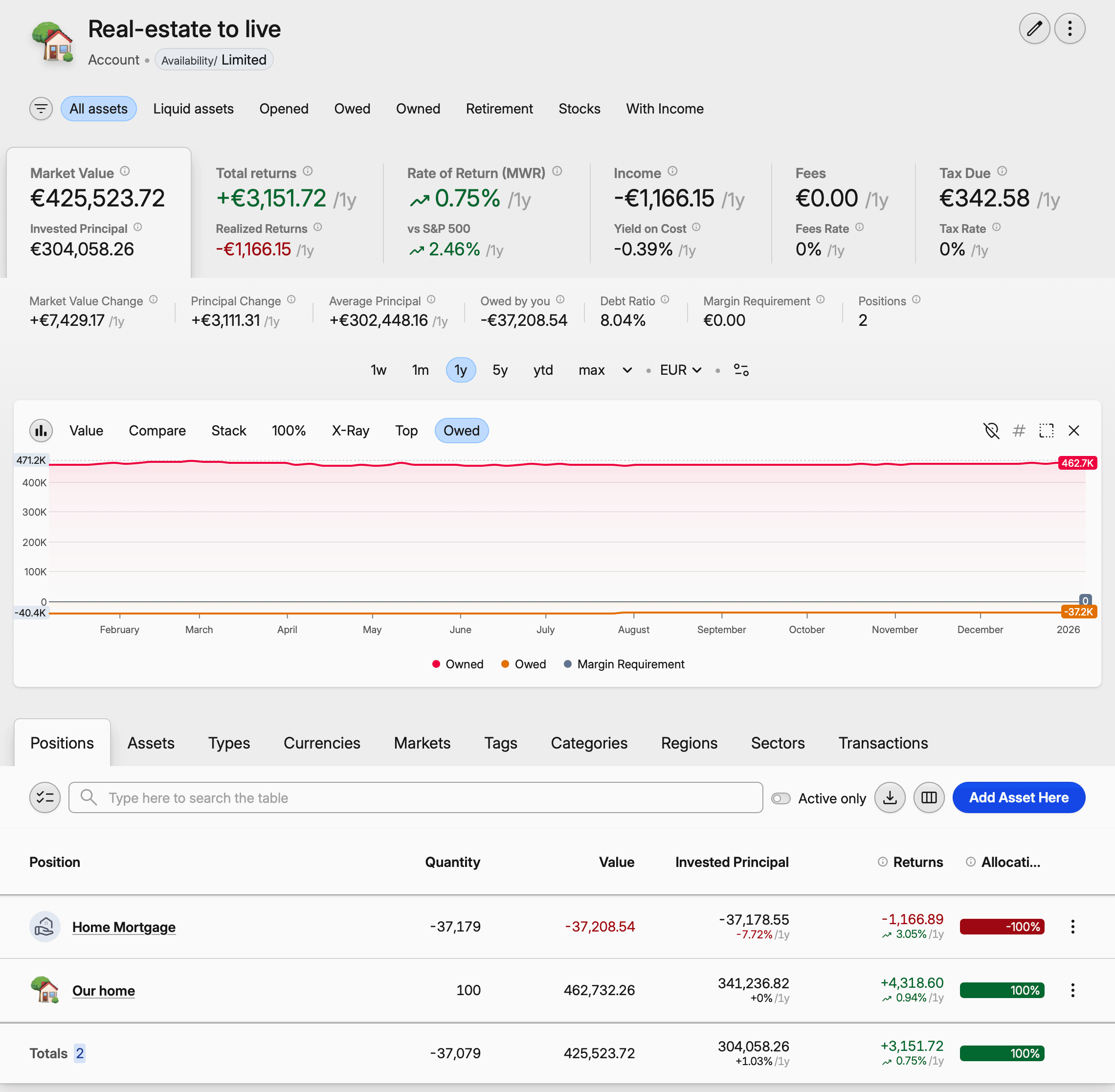
When you open this account in Portfolio, you'll see:
- Owned: the property value
- Owed: the mortgage balance
- Net value: your equity (property value minus mortgage)
The Owed chart shows both values over time.
Viewing your debt metrics
In Portfolio, the Market Value tab shows:
- Owned: Total value of assets you own
- Owed: Total value of liabilities (mortgage balance)
- Debt Ratio: How leveraged you are (
owed / owned)
The Owed chart visualizes how your equity grows as you pay down the mortgage while property value changes.
Keeping the interest out of an income view
To see income without the mortgage in it, switch the filter at the top of Portfolio to Owned. A mortgage is a position with a negative quantity and its payments are negative interest transactions, so Owned drops both before any number is computed, leaving dividends and rent on their own.
For finer control use the condition Unit is owned: yes instead, which decides lot by lot — the property stays, the mortgage against it goes. Save either as a bookmark and the view is one click away. Note that the same filter empties Owed and Debt Ratio, so keep it separate from the debt view above. Full condition reference in Filters.
Importing mortgage transactions
If you have a spreadsheet with your payment history:
- Go to Import → Import any data
- Load your file
- Map columns to transaction properties
- For interest payments, map to Value (as negative) and Principal amortized (as negative)
See Import from a file for detailed instructions.